

We recommend using IAM roles for users to authenticate to cloud storage resources. For more detail, see the assume role and workload identity sections for and .
CHECK EXTERNAL CONNECTION statement.
You can use the following authentication options for Amazon S3 storage buckets:See Amazon’s documentation Managing access keys for IAM users for more details on S3 credentials.You can associate an EC2 instance with an IAM role to provide implicit access to S3 storage within the IAM role’s policy. In the following command, the You can grant a user the Role assumption applies the principle of least privilege rather than directly providing privilege to a user. Creating IAM roles to manage access to AWS resources is Amazon’s recommended approach compared to giving access directly to IAM users.The following section demonstrates setting up assume role authentication between two users. For examples of assume role authentication for more than two roles, refer to Role chaining for additional detail.The 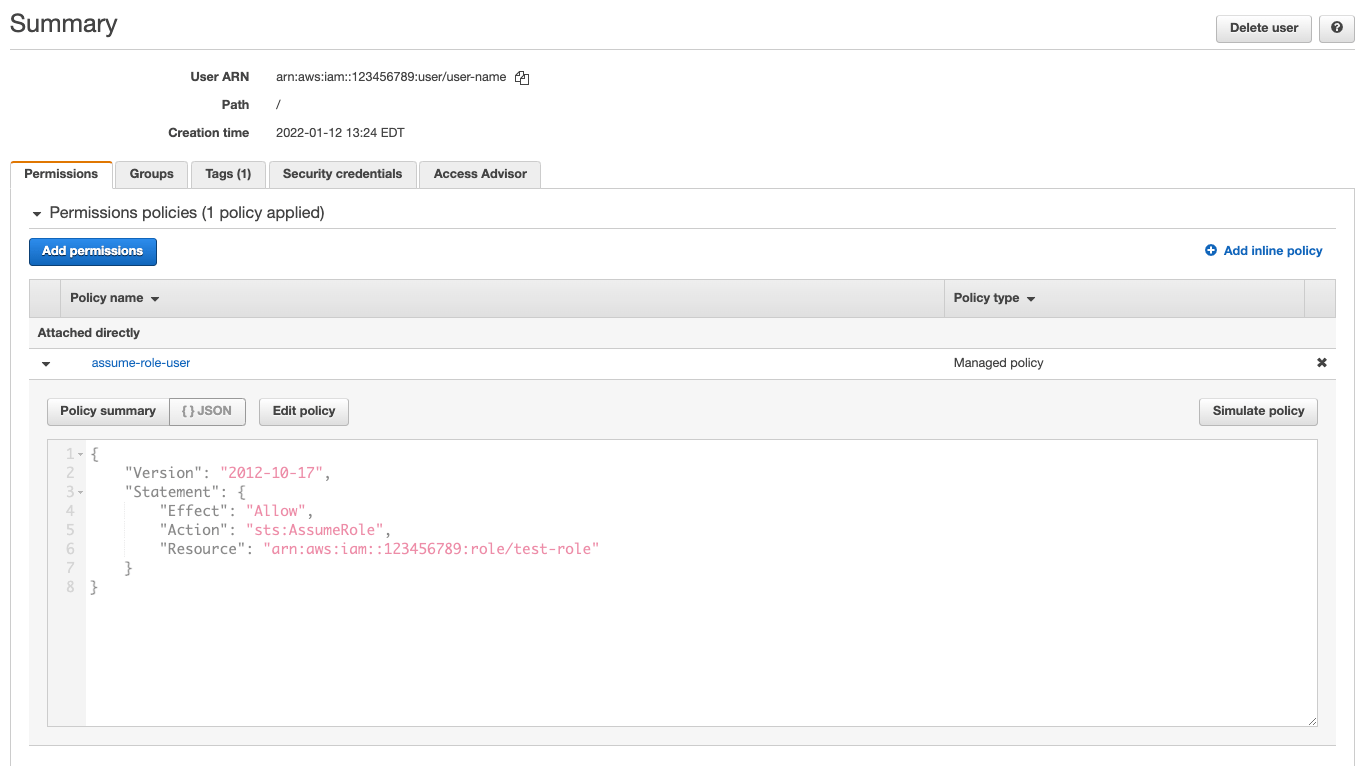
- Specified: You specify the AWS access key ID and secret access key in the URI when connecting.
- Implicit: You store the needed AWS credentials as environment variables, and may omit them when connecting. As an alternative, you can use implicit authentication with the IAM role that CockroachDB Cloud automatically creates and manages for each CockroachDB Advanced cluster to avoid storing any credentials in your cluster.
Amazon S3 specified
If theAUTH parameter is not provided, AWS connections default to specified and the access keys must be provided in the URI parameters.Use these parameters to specify your credentials:AWS_ACCESS_KEY_IDAWS_SECRET_ACCESS_KEY
Amazon S3 implicit
To use
implicit authentication on a CockroachDB Cloud cluster, it is necessary to authenticate using assume role authentication. See Amazon S3 assume role for more details.Use implicit authentication with your own IAM role
To limit the control access to your Amazon S3 buckets, you can create IAM roles for users to assume. IAM roles do not have an association to a particular user. The role contains permissions that define the operations a user (or Principal) can complete. An IAM user can then assume a role to undertake a CockroachDB backup, restore, import, etc. As a result, the IAM user only has access to the assigned role, rather than having unlimited access to an S3 bucket.If theAUTH parameter is implicit, the access keys can be omitted and the credentials will be loaded from the environment (i.e., the machines running the backup).instance example EC2 instance is associated with the example profile instance profile, giving the EC2 instance implicit access to any example profile S3 buckets.EXTERNALIOIMPLICITACCESS to interact with external resources that require implicit access.If the use of implicit credentials is disabled with the , you will receive an error when you access external cloud storage services with
AUTH=implicit.Amazon S3 assume role
CockroachDB supports assume role authentication on clusters running CockroachDB v22.2 and above. On earlier versions, an attempt to authenticate to cloud storage with
ASSUME_ROLE will result in failed bulk operations.Use implicit authentication with your own service account
To limit the control access to your Amazon S3 buckets, you can create IAM roles for users to assume. IAM roles do not have an association to a particular user. The role contains permissions that define the operations a user (or Principal) can complete. An IAM user can then assume a role to undertake a CockroachDB backup, restore, import, etc. As a result, the IAM user only has access to the assigned role, rather than having unlimited access to an S3 bucket.You can use theexternal_id option with ASSUME_ROLE to specify an external ID for third-party access to your Amazon S3 bucket. The external ID is a unique ID that the third party provides you along with their ARN. For guidance on external_id usage in CockroachDB, refer to the following example.You must URL encode the entire value passed to
ASSUME_ROLE.Set up Amazon S3 assume role
For example, to configure a user to assume an IAM role that allows a bulk operation to an Amazon S3 bucket, take the following steps:- Create a role that contains a policy to interact with the S3 buckets depending on the operation your user needs to complete. See the section for details on the minimum permissions each CockroachDB bulk operation requires. You can create an IAM role in Amazon’s Management console, under the IAM and then Roles menu. Alternately, you can use the AWS CLI.
sts:AssumeRole permissions attached. The following policy will give the user assume role permissions:Resource here is the Amazon Resource Name (ARN) of the role you created in step 1. You can copy this from the role’s Summary page.The sts:AssumeRole permission allows the user to obtain a temporary set of security credentials that gives them access to an S3 bucket to which they would not have access with their user-based permissions.- In the trust policy you need to include the ARN of the user that you want to assume the role under
Principal. You can also include theConditionattribute to further control access to the Amazon S3 bucket. For example, this could limit the operation to a specified date range, to users with multi-factor authentication enabled, or to specific IP addresses.-
The
Conditionattribute allows you to specify an external ID that the user has provided with their ARN. For example:For more detail on creating and implementing external IDs in your AWS account, refer to Amazon’s documentation How to use an external ID when granting access to your AWS resources to a third party.
-
The
- If you set the
PrincipalARN toroot, this will allow any IAM user in the account with theAssumeRolepermission to access the Amazon S3 bucket as per the defined IAM role permissions. - When the IAM user takes on the role to perform a bulk operation, they are temporarily granted the permissions contained in the role. That is, not the permissions specified in their user profile.
-
Run the bulk operation. If using specified authentication, pass in the S3 bucket’s URL with the IAM user’s
AWS_ACCESS_KEY_IDandAWS_SECRET_ACCESS_KEY. If using implicit authentication, specifyAUTH=IMPLICITinstead. For assuming the role, pass the assumed role’s ARN, which you can copy from the IAM role’s summary page:If your user also has an external ID, you can pass that withASSUME_ROLE:CockroachDB also supports authentication for assuming roles when taking encrypted backups. To use with an encrypted backup, pass theASSUME_ROLEparameter to the KMS URI as well as the bucket’s:For more information on AWS KMS URI formats, refer to .
Amazon S3 role chaining
Role chaining allows a user to assume a role through an intermediate role(s) instead of the user directly assuming a role. In this way, the role chain passes the request for access to the final role in the chain. Role chaining could be useful when a third-party organization needs access to your Amazon S3 bucket to complete a bulk operation. Or, your organization could grant roles based on limited-privilege levels.You can configure role chaining across multiple roles in the same way you configure assume role authentication for one role, except across all roles that will participate in the chain. For example, to configure role A to assume role B, ensure that the ARN of role A is present in role B’s trust policy with thests:AssumeRole action.The role B’s trust policy must contain:When passing a chained role into
BACKUP, it will follow this pattern:, character. You can copy the ARN of the role from its summary page in the AWS Management console.Amazon S3 workload identity
With a CockroachDB cluster deployed on , you can allow your pods to authenticate as an IAM role that you have associated to a Kubernetes service account. You can then use assume role authentication to allow that IAM role to assume another role that has permissions to perform bulk operations to an S3 bucket.This means that a CockroachDB node will only be able to access credentials for the IAM role associated with the Kubernetes service account.You can use workload identities with assume role authentication to run the following operations:- An identity role: the IAM role associated with your Kubernetes service account.
- An operation role: the IAM role to be assumed. This contains the permissions required to complete a CockroachDB operation.
Step 1. Set up the identity role
The first step to setting up workload identity authentication is different for CockroachDB self-hosted and CockroachDB Advanced clusters. As you work through the step, ensure you use the relevant section for your cluster:Set up the identity role for CockroachDB Advanced clusters
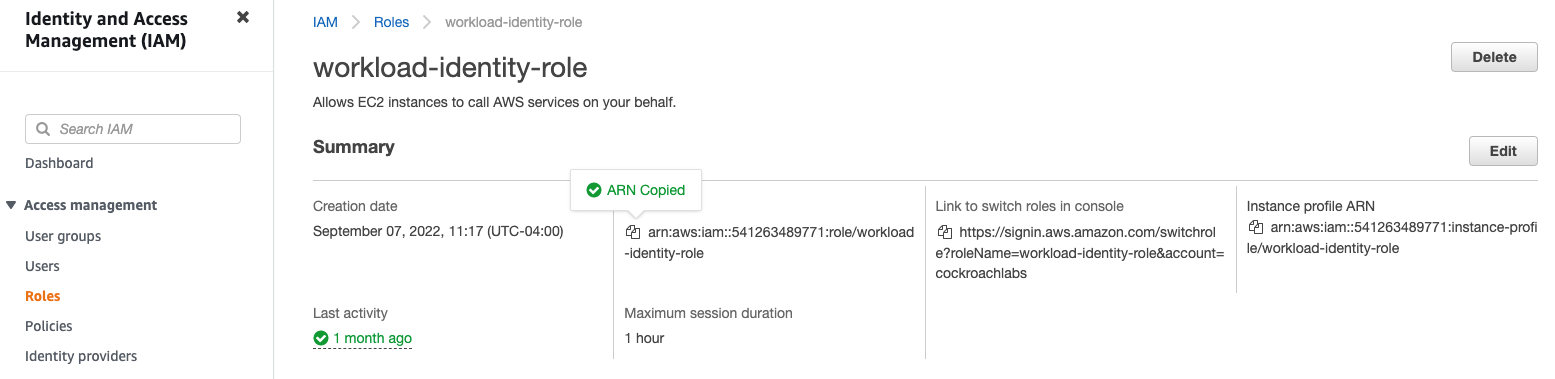
Each CockroachDB Advanced cluster has a pre-configured IAM role for Amazon EKS service accounts that acts as the cluster’s identity. In addition, the clusters have a unique built-in, functionality IAM role, which you can configure as a trusted identity within the Trust Policy of your cloud IAM roles. This allows you to have the built-in IAM role assume another role (or roles as part of a chain). This section will refer to the built-in IAM role as the “identity role”.The prefixes for the built-in IAM identity roles are as follows:Construct the ARN for your identity role. You will need this to add into the Trust Policy of an operation role or intermediary role. The IAM role’s ARN follows this pattern (in this example the
crl-dr-store-user role name is used for a backup):id and the full 12-digit account_id in the following fashion to form the ARN:Set up the identity role for CockroachDB Self-hosted clusters
First, create an IAM role for your Kubernetes service account to assume, and then configure your CockroachDB pods to use the service account. We will refer to this IAM role as an “identity role”. You can complete all of these steps with Amazon’s guide on IAM roles for service accounts.Once you have an identity role that your CockroachDB nodes can assume, you can configure the identity role to assume another IAM role that contains the permissions to perform a bulk operation.Copy the ARN of the identity role. In the Amazon management console, click on IAM, then Roles, and select the name of your identity role. From the Summary page, copy your ARN. You will need this when configuring the Trust Policy for the IAM role to be assumed.Step 2. Trust the identity role
Create or open the operation role that your identity role will assume.If you already have the role that contains permissions for the operation, ensure that you add the identity role ARN to the role’s Trust Relationships tab on the Summary page.
-
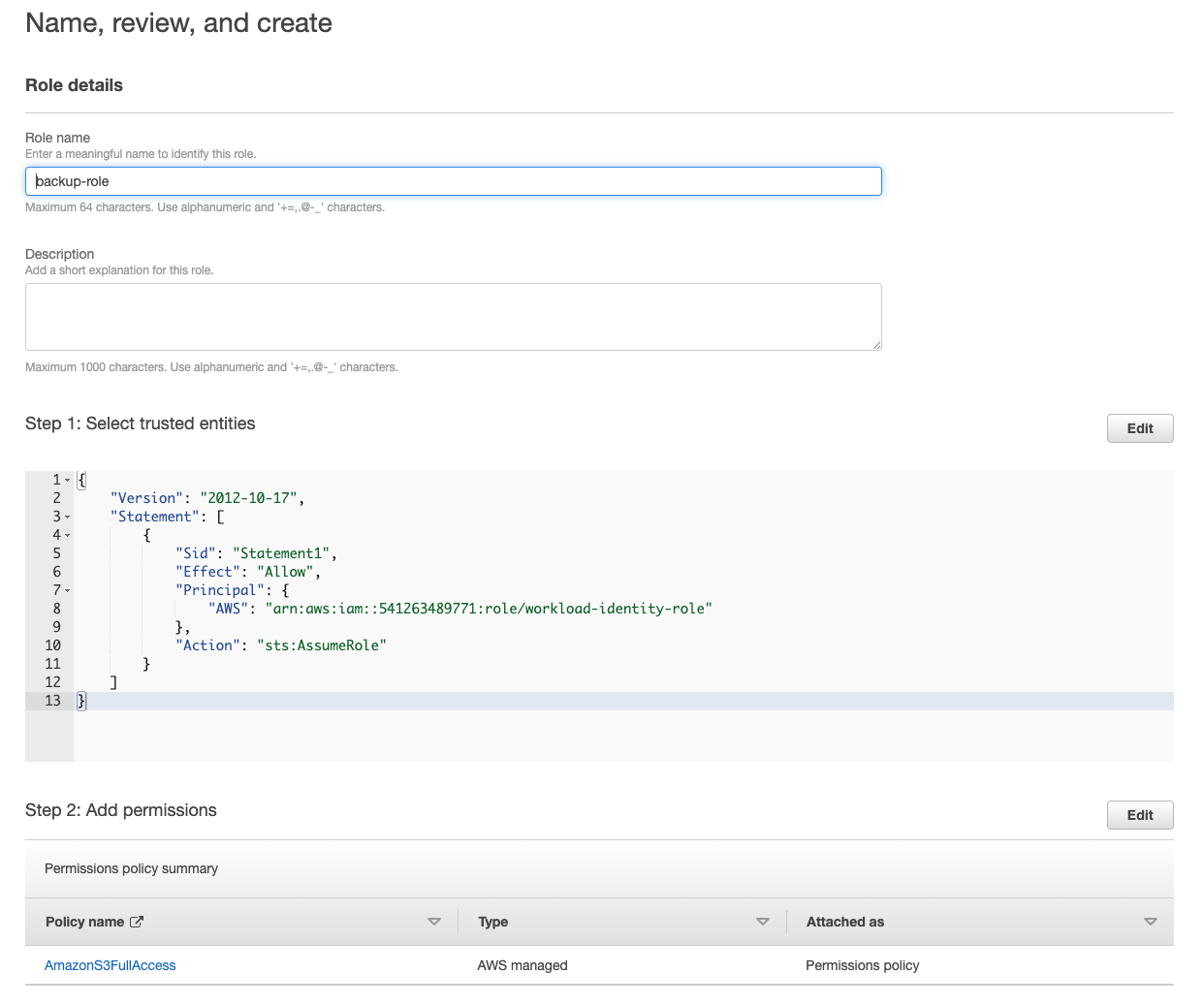
To create an operation role, click Create Role under the Roles menu. Select Custom trust policy and then add the ARN of your identity role (from Step 1) to the JSON by clicking
Principal. This will open a dialog box. Select IAM Roles for Principal Type and paste the ARN. Click Add Principal and then Next.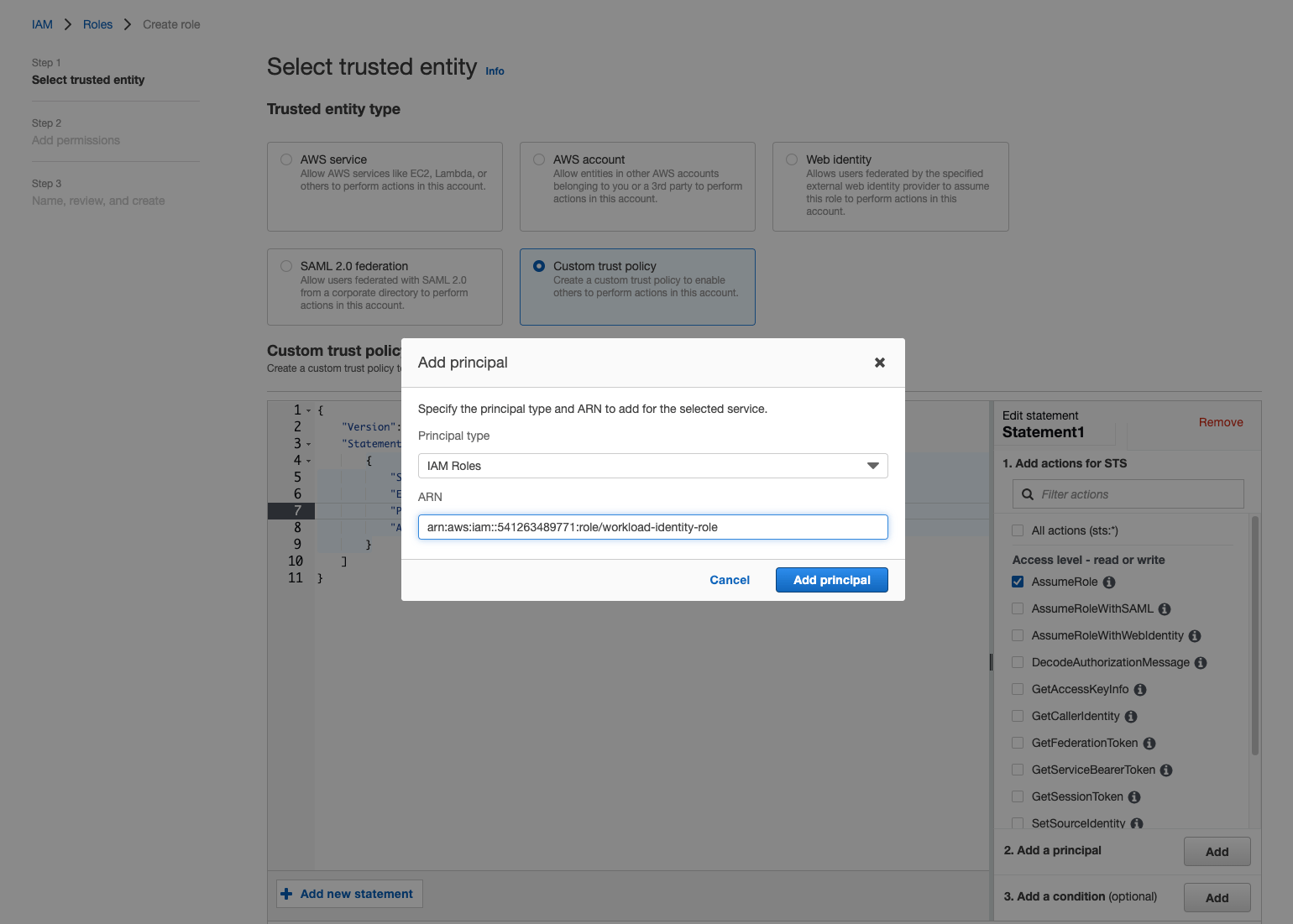
-
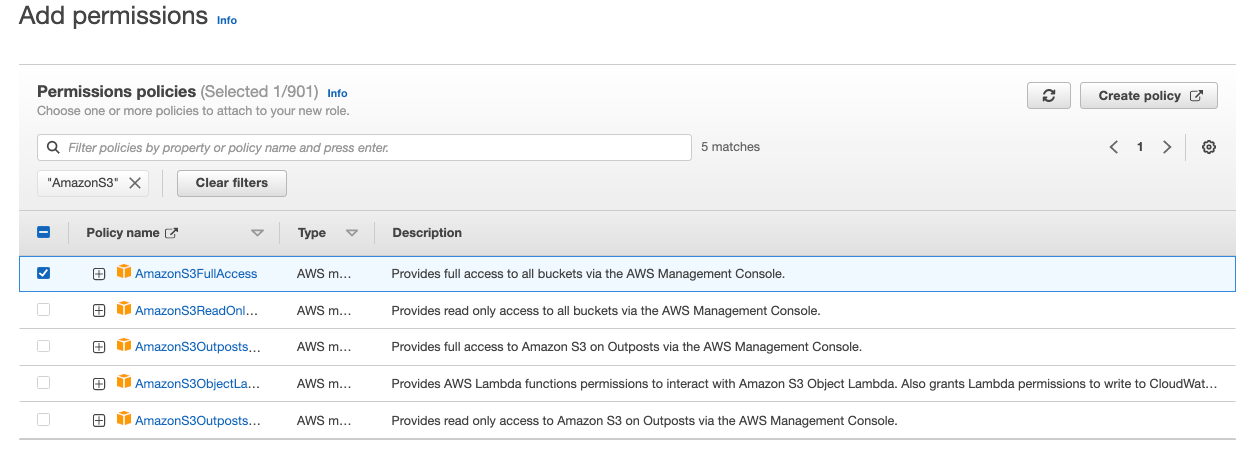
On the Add Permissions page, search for the permission policies that the role will need to complete the bulk operation.
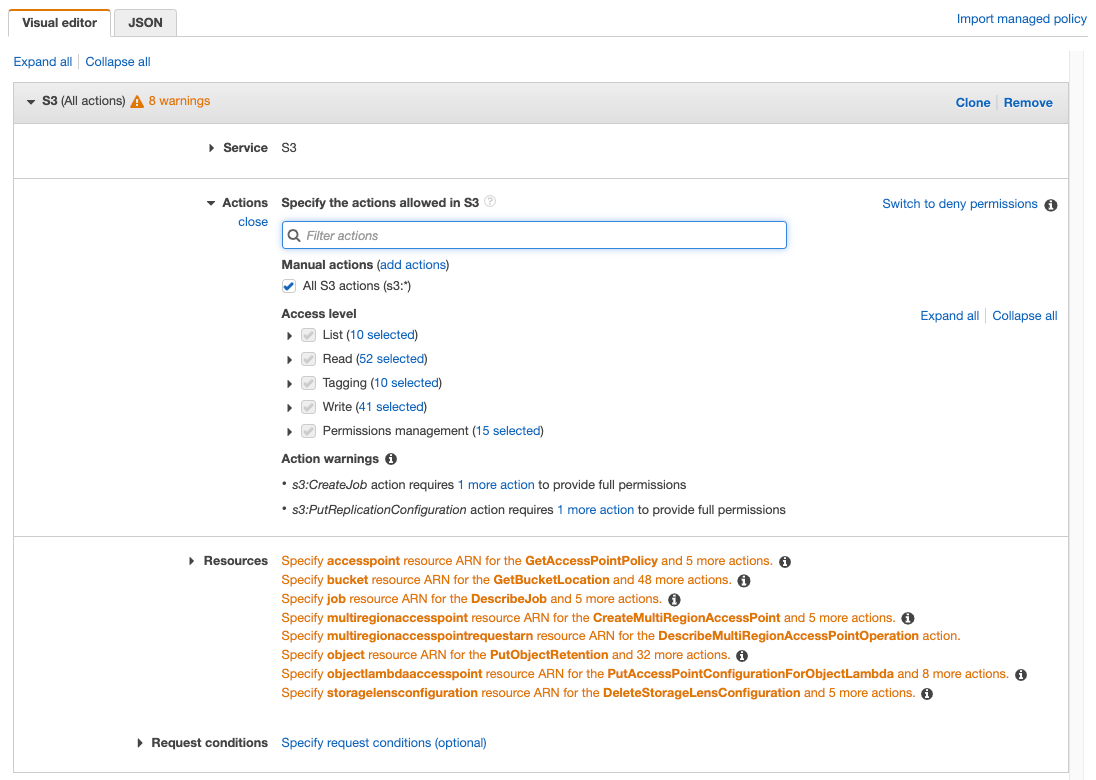
-
Finally, give the role a name on the Name, review, and create page. The following screenshot shows the selected trust policy and permissions:
Step 3. Run the operation by assuming the role
Finally, you’ll use theASSUME_ROLE parameter in your SQL statement to assume a role that contains the necessary permissions. In this step, ensure you read the section for your cluster type:Run the operation from a CockroachDB Advanced cluster
To run an operation, useimplicit authentication so that your AWS cluster can authenticate directly. To the ASSUME_ROLE parameter, pass the pre-configured identity role from Step 1 followed by a comma, and finally the operation role(s) you need the identity to assume.For a backup to Amazon S3:Run the operation from a CockroachDB Self-hosted cluster
To run an operation, you can useimplicit authentication for your identity role and pass the ASSUME_ROLE parameter for your operation role.For a backup to Amazon S3:AUTH=implicit uses the identity role to authenticate to the S3 bucket. The identity role then assumes the operation role that has permission to write a backup to the S3 bucket.You can use the following authentication options for Google Cloud Storage buckets and :- Specified: You specify the Google Cloud credentials key in the URI when connecting.
- Implicit: You store the needed Google Cloud credentials as environment variables, and may omit them when connecting. As an alternative, you can use implicit authentication with the service account that CockroachDB Cloud automatically creates and manages for each CockroachDB Advanced cluster to avoid storing any credentials in your cluster.